
TranslucentTB: a transparent taskbar for Windows 10 and 11
TranslucentTB is a free Windows app that makes the taskbar transparent, tinted, blurred or acrylic. It runs from the system tray, uses a few MB of RAM, and works on Windows 10 (version 1903 and later) and Windows 11.
Free, open source (GPLv3), about 4 MB. Current version 2026.2, released 31 August 2026.
Checked against TranslucentTB 2026.2. Last updated .
25 November 2026: TranslucentTB 2026.2 does not apply on the newest Windows 11 builds. After the 19 November preview update KB5132057 (builds 26200.10075 on 25H2 and 26300.10075 on 26H2) the app runs but the taskbar stays opaque. The fix is already written and is waiting on a signed release.
What TranslucentTB does to the taskbar
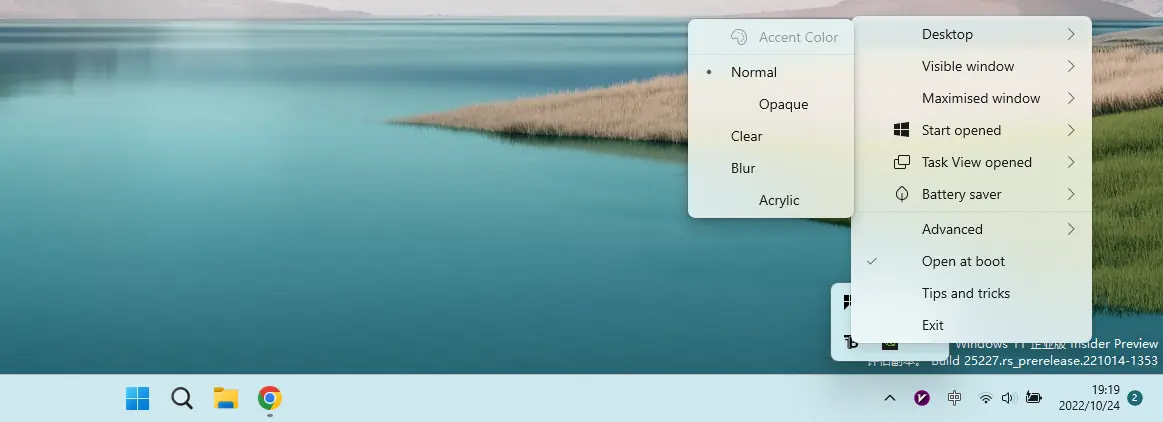
You pick one of five looks for the taskbar. Every look except Normal can also take a colour and an opacity from the built-in colour picker.
Normal
Windows default
Opaque
Solid colour
Clear
See-through tint
Blur
Soft blur
Acrylic
Heavy blur and tint
Illustration drawn in the browser, not a screenshot. Blur and Acrylic depend on your Windows build.
- Normal leaves the taskbar exactly as Windows draws it.
- Opaque paints a solid colour with no transparency.
- Clear removes the background. With the alpha slider at zero only the icons remain. This is the look behind a transparent taskbar on Windows 11 and the same on Windows 10.
- Blur softens whatever is behind the taskbar. It works on Windows 10, and you can blur the Windows 11 taskbar again since version 2024.3.
- Acrylic is the frosted look from Microsoft's Fluent Design. See the setup for an acrylic taskbar.
The Clear vs Acrylic comparison shows the difference and when each one reads better.
It changes with what is on screen
The taskbar does not have to look the same all the time. TranslucentTB has a separate look for each of these situations:
- Desktop, when no window needs the taskbar's attention
- Visible window, when any window is open
- Maximized window
- Start opened
- Search opened
- Task View opened
- Battery saver
A common setup is Clear on the desktop and Acrylic or Opaque when a window is maximized, so text in the window never runs under a see-through taskbar.
The settings guide goes through every entry in the menu.
Get it running in two minutes
- Install it from the Microsoft Store, or open
TranslucentTB.appinstallerfrom the project's GitHub releases. The download page lists every option with file sizes. - Click Continue on the welcome window. The taskbar turns clear straight away.
- Right-click the TranslucentTB icon in the system tray. It may be hidden under the
^arrow. - Open Desktop and pick Clear, Blur or Acrylic. Use Accent Color to tint it.
- Tick Open at boot so it starts with Windows.
The step-by-step guide has the longer walkthrough with screenshots.
Things people ask before installing
Is it safe? The source code is public on GitHub under GPLv3, releases are code signed, and the Microsoft Store carries it. Some antivirus tools still flag it because it injects into Explorer to restyle the taskbar. More under is TranslucentTB safe.
Does it slow the PC down? The project describes it as using a few MB of RAM and almost no CPU. It only acts when the taskbar state changes. See the performance notes.
Does it cost anything? No. There is no paid tier and no "Pro" version. Anything sold under that name is not from the project.

When it stops working
Most reports come down to a short list of causes: a Windows update that changed the taskbar, another taskbar tool fighting over it, or the app not starting with Windows.
- The taskbar stays opaque: the general checklist
- TranslucentTB not working on Windows 11 after update KB5132057
- Only one of two monitors changes
- Open at boot is greyed out
- A fatal error when the app starts
- A white line or white bar on the taskbar
The full list is on the fixes page. For everything that is not a fault, from startup to per-app rules, there are the guides, and the uses pages give the shortest route to one specific look.
Build a settings file without typing JSON
Per-app rules and the blur radius only exist in settings.json. The config generator lets you choose each state, colour and rule with ordinary controls, shows a preview, and gives you a file to paste in.
Common questions
What is TranslucentTB?
A small open source utility for Windows 10 and 11 that changes how the taskbar background is drawn. It can make it transparent, tinted, blurred or acrylic, and can switch between looks depending on whether a window is maximized or the Start menu is open.
Who makes TranslucentTB?
It is a community project hosted at github.com/TranslucentTB/TranslucentTB. The README credits @ethanhs, @sylveon, @MrAksel and @denosawr, plus many contributors. The Microsoft Store listing is published by Charles Milette.
Which Windows versions does it support?
Windows 10 version 1903 (build 18362) or later, and Windows 11. It is built for x64 and ARM64. There is no 32-bit build, and it does not run on Windows 7 or 8.1.
Where does TranslucentTB keep its settings?
In a file named settings.json. For Store and App Installer installs it is in %LocalAppData%\Packages\28017CharlesMilette.TranslucentTB_v826wp6bftszj\RoamingState. The portable version keeps it next to the executable. You can open it from the tray menu under Advanced, Edit settings.
Can TranslucentTB centre taskbar icons or round the corners?
No. It only changes the taskbar's background and, on Windows 11, the thin border line. Windows 11 centres taskbar icons by itself. For rounded corners people pair it with RoundedTB.
Is there a TranslucentTB for Mac or Linux?
No. It depends on the Windows taskbar. There are notes on what to use instead on a Mac and on Linux, and the alternatives page compares the Windows options.