
Blur the taskbar on Windows 11
Blur taskbar Windows 11 setups stopped working when Microsoft removed the old blur effect in version 22H2. TranslucentTB brought the look back in version 2024.3 with its own blur for the new taskbar, and added a strength setting Windows never had.
Free. Blur on Windows 11 needs TranslucentTB 2024.3 or later.
Checked against TranslucentTB 2026.2. Last updated .
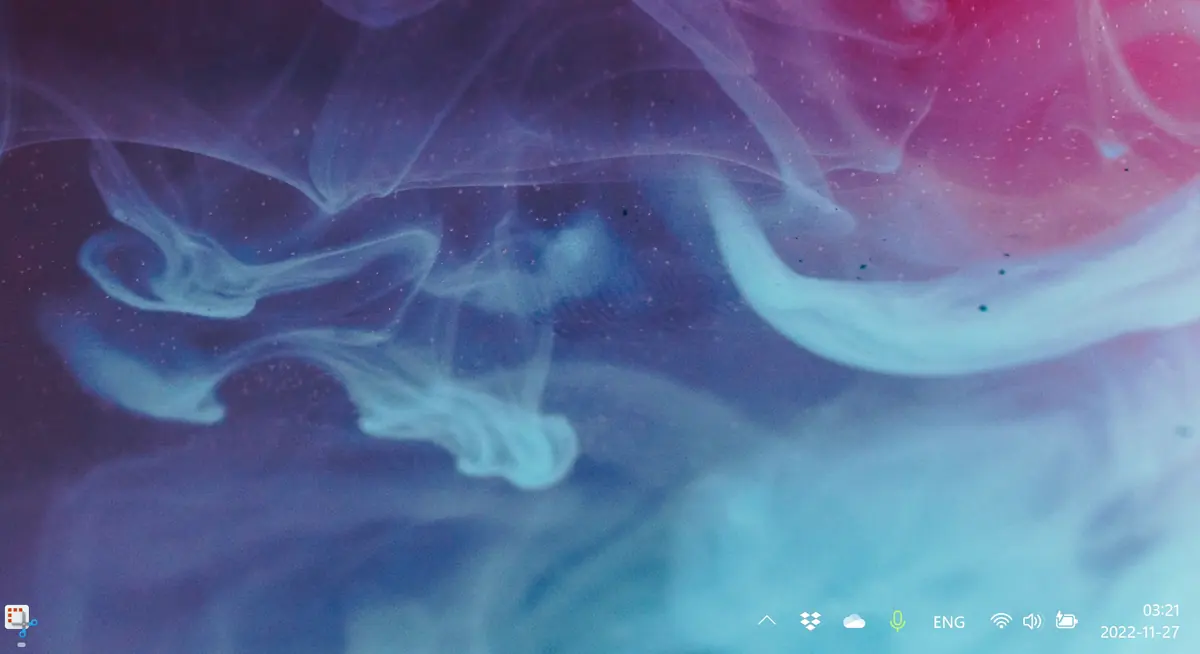
Turn on the blur
- Install or update TranslucentTB to 2024.3 or later.
- Right-click the tray icon, open Desktop, choose Blur.
- Open Accent Color and lower the alpha. The blur only shows through a colour that is partly transparent.
Set how strong it is
Open Advanced, Edit settings, and add blur_radius to the state:
"desktop_appearance": {
  "accent": "blur",
  "color": "#00000030",
  "show_line": false,
  "blur_radius": 20.0
}
The default is 9. Higher numbers blur more. Save the file and the taskbar updates.
The config generator has a slider for it.
Requirements
- Windows 11 22H2 or later with the standard taskbar
- TranslucentTB 2024.3 or later
- Not available when ExplorerPatcher or StartAllBack restores the classic Windows 10 style taskbar
The Blur guide has the full version table, including Windows 10 and Windows 11 21H2.
Blur with a different look for windows
Blur on the desktop pairs well with an acrylic taskbar for Maximized window. The taskbar is soft over the wallpaper and more solid behind full-screen apps.
Sources: the 2024.3 release notes and the settings schema.
Related pages
- Transparent taskbar on Windows 11Fully see-through, with the border line removed.
- Remove the taskbar line (Windows 11)Hide the one-pixel border above the Windows 11 taskbar.
- Transparent taskbar without an appThe built-in switch and the registry tweak, and how far each one goes.
- Not working after KB5132057November 2026. The taskbar stays opaque on 25H2 and 26H2 after the preview update. Status and workarounds.
- 25H2, 24H2 and 26H2 statusWhich Windows 11 versions work with 2026.2 today, by build number.
- TranslucentTB for Windows 11Store, App Installer and portable builds, plus what differs on Windows 11.
See everything under Uses.