
TranslucentTB center taskbar icons: how to do it
TranslucentTB center taskbar icons is a common search, and the answer is that the app does not move icons. It only changes the taskbar's background. Icon position comes from Windows on Windows 11 and from a separate tool on Windows 10.
Checked against TranslucentTB 2026.2. Last updated .
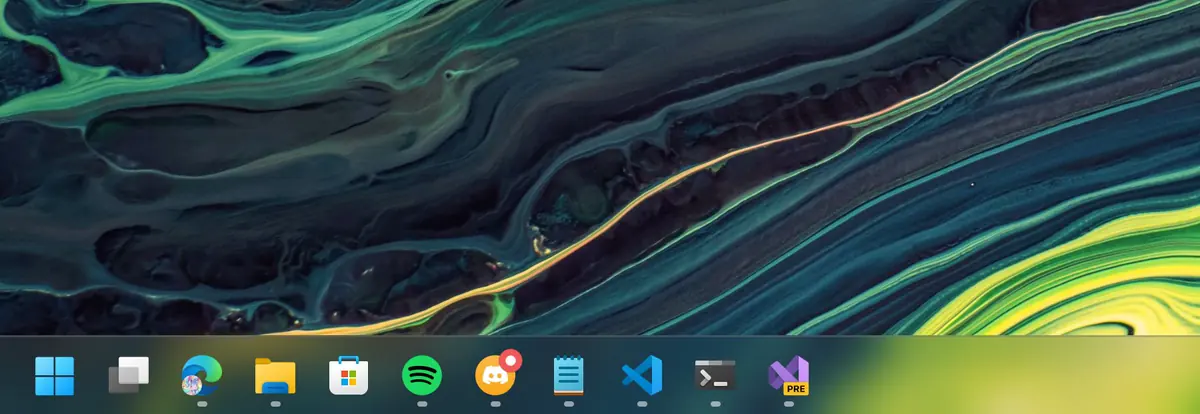
Windows 11: use the built-in setting
- Right-click an empty part of the taskbar and choose Taskbar settings.
- Open Taskbar behaviors.
- Set Taskbar alignment to Center or Left.
This works with every TranslucentTB look. A clear taskbar with centred icons and the border hidden is the classic minimal Windows 11 setup.
Windows 10: TaskbarX
Windows 10 has no alignment setting. The tool people used for it is TaskbarX, which centres the icons and animates them into place.
Things to know before installing it (the full TaskbarX and TranslucentTB comparison has more):
- TaskbarX is free on GitHub and paid in the Microsoft Store.
- Its last release, 1.7.8.0, is from October 2022, and the repository was archived in June 2025. It gets no fixes.
- It has its own taskbar style options (transparent, blur, acrylic). Those collide with TranslucentTB.
The TranslucentTB developer's advice in issue #353, for a glitching taskbar with both installed: switch off TaskbarX's appearance options and let it handle position only.
In TaskbarX Configurator, set the Style to Default. Then TranslucentTB controls the background and TaskbarX controls where the icons sit.
Why TranslucentTB will not add this
Centred icons have been requested and declined as out of scope (#91, #352). The project keeps to one job: the taskbar's appearance.
Some websites list "taskbar layouts" or "icon spacing" as TranslucentTB features. Those are not in the app, its menu or its settings schema.
Other things it does not move or hide
- Hiding the taskbar. Use Windows' own "Automatically hide the taskbar" under Taskbar behaviors, which combines well with an invisible taskbar background. A hotkey to hide the taskbar was declined.
- Start menu transparency. Declined for now. The developer has pointed to a separate project named TranslucentSM.
- Taskbar position and size. Windows settings, or a tool such as ExplorerPatcher.
Sources: the TaskbarX repository, issues #353, #91, #352, #188, #46.
Related pages
- Rounded corners (RoundedTB)What RoundedTB adds, its current state, and what to use instead.
- Works with other tools?Which desktop tools coexist with it, which clash, and what to change.
- TranslucentTB vs WindhawkA one-job app against a full styling engine for the Windows 11 taskbar.
- TranslucentTB not workingThe general checklist when the taskbar stays opaque.
- Keeps crashing or closingWhen the app exits by itself, or Explorer restarts in a loop.
- How to use TranslucentTBFrom the welcome window to a finished taskbar, in five steps.
See everything under Guides.