
TranslucentTB tips and tricks
TranslucentTB tips that are worth your time fall into two groups: settings inside the app that most people never open, and Windows settings that make a transparent taskbar look finished.
All twelve come from the project's own documentation, release notes or issue tracker.
Checked against TranslucentTB 2026.2. Last updated .
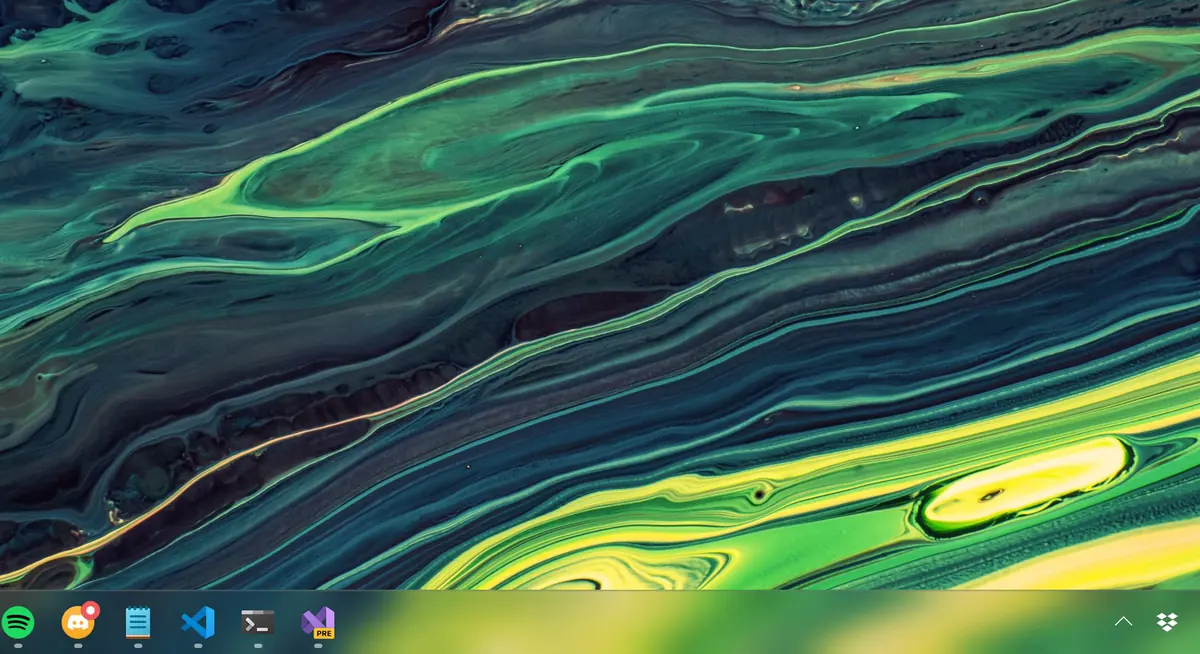
Inside TranslucentTB
1. Give maximized windows a different look
Enable Maximized window and set it to Acrylic or Opaque. The taskbar stays clear on the desktop and becomes solid behind full-screen windows, where a see-through bar over a document looks wrong.
2. Learn the reset shortcut
Ctrl + Alt + Shift + F1 resets the dynamic state from anywhere. Use it when the taskbar shows the wrong look after sleep, or on a second monitor after a display change. Added in 2026.2.
3. Launch it by typing ttb
The packaged versions register a short alias. Press Win + R, type ttb and press Enter. If the app is already running, this also resets the dynamic state.
4. Tint instead of going fully clear
Fully clear looks best on plain wallpapers. On busy ones, keep Clear and give the colour 30 to 40% black. Icons and the clock gain contrast and the wallpaper still shows through.
5. Hide the border on Windows 11, the Peek button on Windows 10
Untick Show taskbar border on Windows 11 to remove the line above the taskbar. On Windows 10, untick Show Desktop Peek Button for the Desktop state. The project's tips page suggests hiding Peek only when no window is maximized.
6. Set the blur strength
On Windows 11 22H2 and later, blur_radius in the config file controls how strong Blur is. The default is 9. Details in the Blur guide.
7. Make one app change the taskbar
Rules in the config file can give a single program its own look, such as solid black while a video player is maximized. See how per-app rules work.
8. Edit settings with autocomplete
The settings file starts with a $schema line. Open it in VS Code and the editor suggests valid keys and flags mistakes as you type.
In Windows
9. Switch Windows mode to Dark for white text
Settings, Personalization, Colors, Custom, default Windows mode: Dark. The taskbar text turns white while apps can stay light. Steps in the text colour guide.
10. Turn off the accent colour on the taskbar
If taskbar elements show an odd tint, switch off "Show accent color on Start and taskbar" on the same Colors page. This is from the project's tips page.
11. Remove buttons you do not use
A clear taskbar looks better with fewer things on it. Right-click the taskbar, open Taskbar settings and switch off Search, Task view and Widgets. On Windows 10, system icons are under "Turn system icons on or off".
12. Pick a wallpaper with a calm bottom edge
The taskbar sits on the lowest strip of the wallpaper. An image that is dark and plain along the bottom makes icons and text readable with no tint at all.
One more: back up the file
Copy settings.json once your setup is right. A reinstall wipes it. The config file guide shows where it is.
Sources: the project's tips page, the app's package manifest (for the ttb alias), and the release notes.
Related pages
- How to use TranslucentTBFrom the welcome window to a finished taskbar, in five steps.
- TranslucentTB settings explainedWhat every entry in the tray menu does, including Advanced.
- Battery saver stateWhy the taskbar turns solid on low battery, and how to choose what it does.
- Run at startupOpen at boot, the portable method and the start-up delay.
- Uninstall TranslucentTBEvery install type, plus the restart that finishes the job.
- White line or white barThe thin border line, and the separate white-block bug.
See everything under Guides.