
TranslucentTB Blur on Windows 10 and 11
TranslucentTB Blur softens whatever sits behind the taskbar without the heavy frosting of Acrylic. It has been removed and restored more than once on Windows 11, which is why guides disagree about it.
As of version 2026.2, Blur works on Windows 10 and on Windows 11 22H2 or later.
Checked against TranslucentTB 2026.2. Last updated .
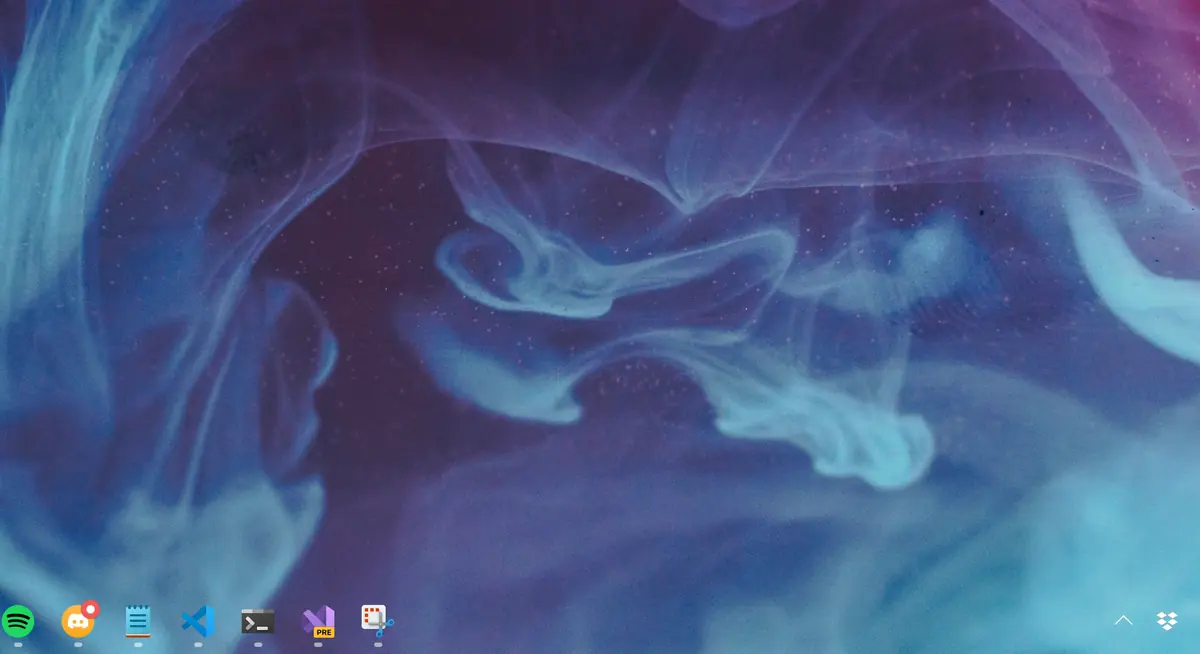
Turn Blur on
- Right-click the TranslucentTB tray icon.
- Open the state you want to change, usually Desktop.
- Click Blur.
- Open Accent Color and lower the alpha slider. A solid colour hides the blur behind it.
If you only want the Windows 11 steps, the page on how to blur the taskbar on Windows 11 is shorter.
Where Blur is available
| Windows | Blur | Why |
|---|---|---|
| Windows 10 (1903 to 22H2) | Yes | Uses the blur effect built into Windows 10 |
| Windows 11 21H2 (build 22000) | Yes, with update KB5006746 | Early builds lagged when a window was dragged under a blurred taskbar. Microsoft fixed that. |
| Windows 11 22H2 and later | Yes, with TranslucentTB 2024.3 or later | Microsoft removed the old effect. The app now applies its own blur to the new taskbar. |
| Windows 11 22H2 and later with the classic taskbar restored by ExplorerPatcher | No | The classic taskbar depended on the effect Microsoft removed |
Sources: release notes for 2021.4, 2022.1 and 2024.3.
The project README still describes Blur as "Windows 10 and Windows 11 build 22000 only". The 2024.3 release notes are newer and describe the feature's return.
Change the blur strength with blur_radius
On Windows 11 22H2 and later you can set how strong the blur is. The setting is only in the config file.
- Tray icon, Advanced, Edit settings.
- Find the state that uses Blur and set
blur_radius. - Save. The taskbar updates by itself.
"desktop_appearance": {
  "accent": "blur",
  "color": "#1E1E1E40",
  "show_line": false,
  "blur_radius": 15.0
}
The default is 9. The schema accepts 0 to 750. Values from about 5 to 30 cover the range from a slight haze to a strong frost. The property does nothing on Windows 10 or on Windows 11 21H2.
No Blur option in the menu
The app hides Blur when the system cannot do it. Check these in order:
- You are on Windows 11 22H2 or later with a TranslucentTB older than 2024.3. Update the app.
- You restored the Windows 10 style taskbar with ExplorerPatcher. Use Acrylic instead.
- Your config asked for Blur where it is unavailable. The app switched that state to Acrylic for you.
Blur or Acrylic?
Blur keeps more of the wallpaper's detail and colour. Acrylic is stronger and adds a tint and grain. If text over your wallpaper is still hard to read with Blur, raise blur_radius first, then try Acrylic. The comparison of the five looks shows both.
Remove the blur
Pick Clear for a taskbar with no blur at all, or Normal to hand it back to Windows.
Related pages
- White line or white barThe thin border line, and the separate white-block bug.
- Taskbar text colourWhite clock and icons on a clear taskbar, using a Windows setting.
- Battery saver stateWhy the taskbar turns solid on low battery, and how to choose what it does.
- How to use TranslucentTBFrom the welcome window to a finished taskbar, in five steps.
- TranslucentTB settings explainedWhat every entry in the tray menu does, including Advanced.
- Tips and tricksTwelve small things that make the result look and work better.
See everything under Guides.