
TranslucentTB text color: make the taskbar text white or black
TranslucentTB text color is not a setting in the app. It changes the taskbar's background only. The clock, the tray icons and the labels are drawn by Windows, and Windows picks their colour from its own light or dark mode.
So the fix for a clock you cannot read is a Windows setting, and it takes four clicks.
Checked against TranslucentTB 2026.2. Last updated .
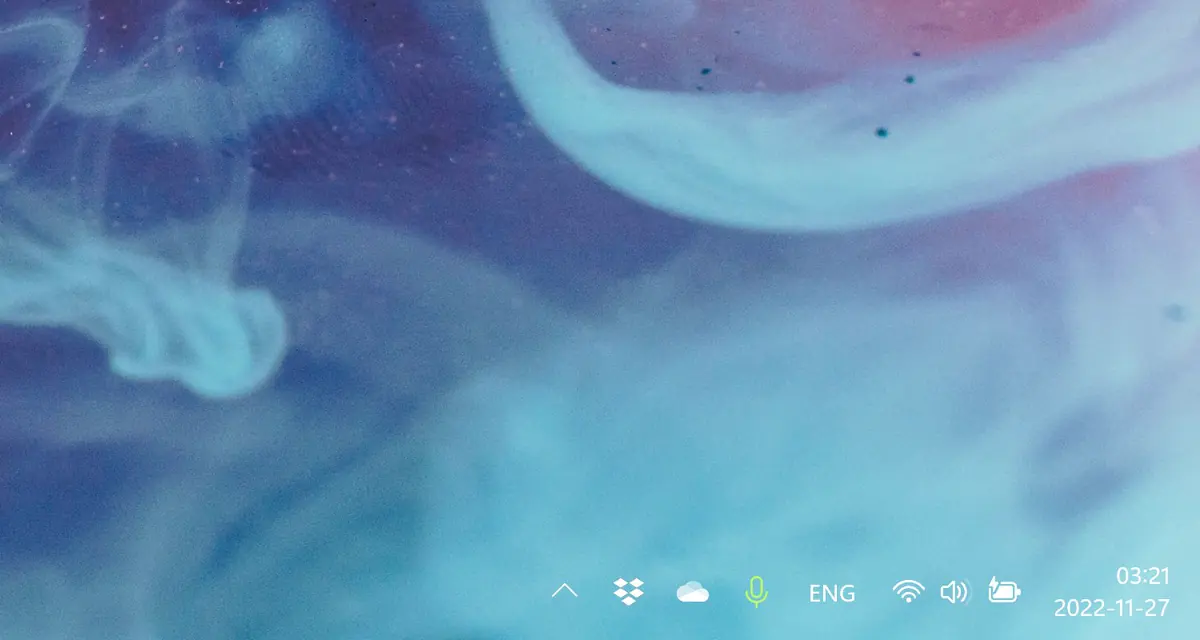
Make the taskbar text white
- Open Settings, Personalization, Colors.
- Set Choose your mode to Custom.
- Set Choose your default Windows mode to Dark.
- Leave Choose your default app mode on Light if you like light windows.
The taskbar, Start menu and tray now use white text and icons. File Explorer, Settings and your other apps stay light. This is the lead developer's own answer to the question in issue #473.
Make the taskbar text black
Do the reverse: set the default Windows mode to Light. Text and icons turn dark, which suits a pale wallpaper.
Why the app has no text colour option
The request is the project's oldest open one. Issue #41 has been open since 2017. The developer has explained in later threads why recolouring text and icons inside the taskbar is a much harder problem than changing its background.
If you see a site or video claiming a hidden TranslucentTB text colour setting, it does not exist in the settings schema.
Text still hard to read? Change what is behind it
With a busy wallpaper, neither white nor black text reads well on a fully clear taskbar. Three ways to fix that inside TranslucentTB:
- Tint the clear taskbar. Keep Clear, open Accent Color, choose black and raise the alpha to roughly 30 to 40%. The wallpaper still shows and white text gains contrast.
- Use Acrylic or Blur. Blurring the wallpaper removes the fine detail that competes with text.
- Use a different look for windows. Enable Maximized window with Acrylic or Opaque, so text never sits over a white document.
Coloured boxes behind icons
If parts of the taskbar pick up your accent colour, switch off "Show accent color on Start and taskbar" on the same Colors page. The project's tips page recommends this.
Can't see the time on a second monitor
Each monitor's taskbar reacts to its own windows. A light, maximized window on one screen with a clear look gives a pale background under white text there. Set the Maximized window state to something darker.
Sources: issues #473, #41, #1343, and the project's tips page.
Related pages
- Clear vs Acrylic vs BlurThe five looks side by side, with the Windows versions each one needs.
- Tips and tricksTwelve small things that make the result look and work better.
- Blur and blur radiusWhich Windows builds have Blur, and how to change its strength.
- Battery saver stateWhy the taskbar turns solid on low battery, and how to choose what it does.
- How to use TranslucentTBFrom the welcome window to a finished taskbar, in five steps.
- TranslucentTB settings explainedWhat every entry in the tray menu does, including Advanced.
See everything under Guides.