
TranslucentTB settings explained
TranslucentTB settings all live in the tray icon's right-click menu. The menu has one entry per taskbar state, and each state has the same small set of options.
This page lists every entry, top to bottom, with what it does and its default.
Checked against TranslucentTB 2026.2. Last updated .
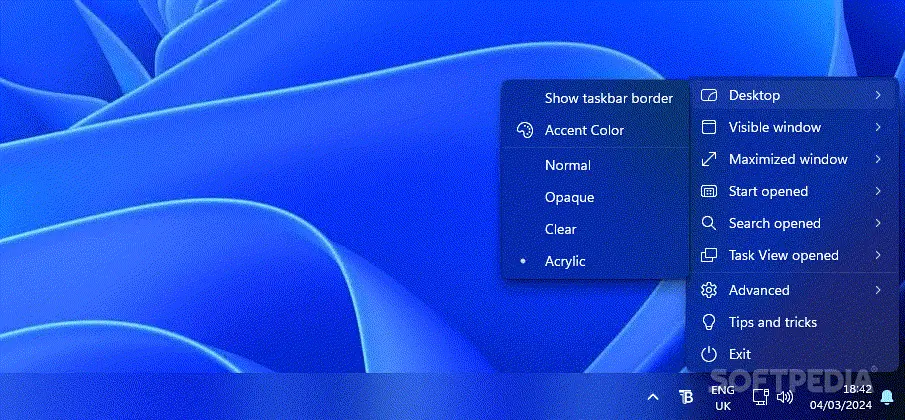
The seven states
A state is a situation the taskbar can be in. TranslucentTB keeps a separate look for each one and applies whichever matches.
| Menu entry | Applies when | Default |
|---|---|---|
| Desktop | Nothing else below applies. This is the base look and cannot be disabled. | Clear |
| Visible window | A window is open on that monitor and not maximized | Off |
| Maximized window | A window is maximized on that monitor | Off in the program defaults. Acrylic when you enable it. |
| Start opened | The Start menu is open | On in Windows 10, off in Windows 11. Normal. |
| Search opened | The search panel is open | On in Windows 10, off in Windows 11. Normal. |
| Task View opened | Task View is open (Win + Tab) | On. Normal. |
| Battery saver | Windows battery saver is active | Off. Opaque when you enable it. |
Defaults read from Common/config/config.hpp in the project source for 2026.2.
States are evaluated per monitor. A maximized window on one screen does not change the taskbar on the other. A taskbar that is not styled at all on one screen is a separate bug, covered under TranslucentTB not working on the second monitor.
Options inside each state
Enabled
Every state except Desktop has this switch. When it is off, the state is ignored and the next matching one is used.
Normal, Opaque, Clear, Blur, Acrylic
The look itself. The Clear vs Acrylic guide compares them.
Accent Color
Opens the colour picker for that state. It supports alpha, so you can choose how see-through the tint is, and it previews live on the taskbar. It is unavailable when the look is Normal.
Show taskbar border (Windows 11)
Shows or hides the thin line along the top edge of the Windows 11 taskbar for that state. A thick white block is something else: see the white line and white bar fixes.
Show Desktop Peek Button (Windows 10)
Shows or hides the narrow button at the right end of the Windows 10 taskbar for that state. The button keeps working when hidden.
The Advanced submenu
- Edit settings opens
settings.jsonin your default editor. Saving the file applies the changes without a restart. - Return to default settings resets every state.
- Disable saving settings stops menu changes from being written to the file. Useful when you manage the file by hand. It is also the first thing to check when settings are not saving.
- Reset dynamic state makes the app look at the windows again. Use it when the taskbar is stuck on the wrong look. The shortcut is Ctrl + Alt + Shift + F1.
- Open log file and Log verbosity are for troubleshooting. The default level is Warning.
- Dump dynamic state to log writes what the app currently believes about each window and monitor. Developers ask for this in bug reports.
- Compact thunk heap is a low-level maintenance command meant for developers. You should not need it in normal use.
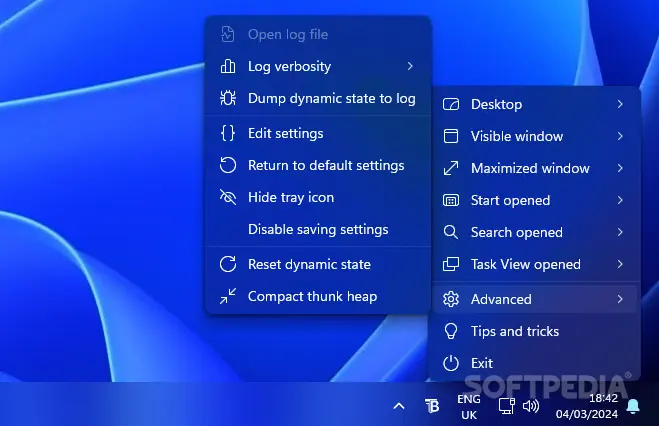
The rest of the main menu
- Open at boot starts the app when you sign in. See running it at startup, or what to do when Open at boot is greyed out.
- Tips and tricks opens the project's tips page in your browser.
- About TranslucentTB shows the version.
- Exit closes the app and restores the default taskbar.
Settings that are not in the menu
Some options exist only in the config file: per-app rules, the list of ignored windows, the blur radius, the language override and hiding the tray icon. The config file guide covers them, and the config generator writes the file for you.
Three setups that work well
Clean desktop. Desktop: Clear, border off, as in the transparent taskbar setup. Maximized window: on, Acrylic. Everything else default.
Always frosted. Desktop: Acrylic with a dark tint at about 40% alpha. No other states enabled.
More ideas, including Windows settings that help, are in the tips and tricks.
Laptop. Desktop: Clear. Battery saver: on, Opaque, so the taskbar gives a visual cue when the battery is low.
Related pages
- How to use TranslucentTBFrom the welcome window to a finished taskbar, in five steps.
- Blur and blur radiusWhich Windows builds have Blur, and how to change its strength.
- Taskbar text colourWhite clock and icons on a clear taskbar, using a Windows setting.
- Hide the tray iconThe hide_tray option, the Windows-only alternative and the way back.
- Per-app rulesGive one program its own taskbar look, or tell the app to ignore a window.
- Clear taskbar appThe Clear look, from an invisible taskbar to a light tint, and how it combines with auto-hide.
See everything under Guides.