
Remove the taskbar line in Windows 11
Remove taskbar line in Windows 11 is a one-click job in TranslucentTB. Windows 11 draws a thin border along the top of the taskbar and has no setting to turn it off. The app adds that setting.
Free. The border option needs TranslucentTB 2022.1 or later.
Checked against TranslucentTB 2026.2. Last updated .
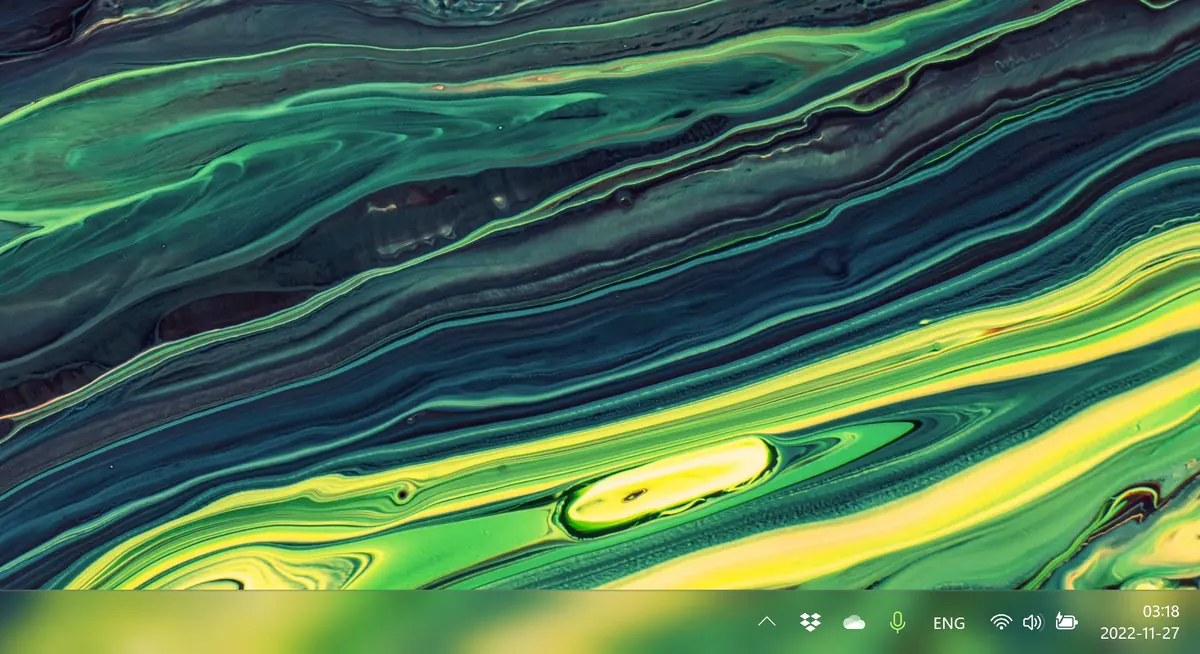
Hide the border
- Install TranslucentTB and right-click its tray icon.
- Open Desktop.
- Untick Show taskbar border.
The line disappears at once.
Keep the normal taskbar and only remove the line
You do not need a transparent taskbar for this. If you like the stock taskbar and only dislike the line, choose Acrylic or Opaque with a dark colour close to the Windows default, and untick the border.
The line comes back when a window is open
The option is stored per state. Untick it in each state you have enabled: Visible window, Maximized window, Start opened and the rest.
Some people keep the line on purpose for the Maximized window state. It gives a clear edge between a window and the taskbar.
In the config file
"desktop_appearance": {
  "accent": "clear",
  "color": "#00000000",
  "show_line": false
}
Where the line comes from
It is part of Windows 11, not something the app adds. The developer explained this when people first noticed it on a clear taskbar, and version 2022.1 added the switch.
Windows 10 has no such line, so the menu entry does not appear there.
A thicker white bar is a different problem
A solid white block on the taskbar is a rendering bug, not the border. See the white bar bug.
Sources: the 2022.1 release notes and issues #425 and #661.
Related pages
- Transparent taskbar on Windows 11Fully see-through, with the border line removed.
- Transparent taskbar without an appThe built-in switch and the registry tweak, and how far each one goes.
- Blur the taskbar on Windows 11A soft-focus taskbar with a strength you can set.
- Acrylic taskbar on Windows 11The frosted Fluent Design look, tinted any colour you choose.
- Not working after KB5132057November 2026. The taskbar stays opaque on 25H2 and 26H2 after the preview update. Status and workarounds.
- 25H2, 24H2 and 26H2 statusWhich Windows 11 versions work with 2026.2 today, by build number.
See everything under Uses.