
TranslucentTB Clear vs Acrylic, and the other three looks
TranslucentTB Clear vs Acrylic is the choice most people get stuck on. Clear shows the wallpaper untouched. Acrylic frosts it, which keeps icons and the clock readable over busy backgrounds.
There are five looks in total. Here is each one, drawn over the same wallpaper.
Checked against TranslucentTB 2026.2. Last updated .
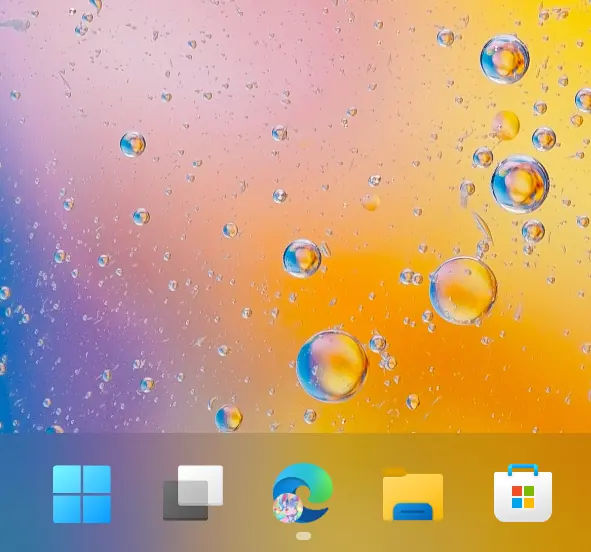
Normal
Windows default
Opaque
Solid colour
Clear
See-through tint
Blur
Soft blur
Acrylic
Heavy blur and tint
Illustration drawn in the browser, not a screenshot. Blur and Acrylic depend on your Windows build.
The five looks
| Look | What you see | Colour picker | Works on |
|---|---|---|---|
| Normal | The stock Windows taskbar | No | Windows 10 and 11 |
| Opaque | A flat colour, nothing shows through | Yes | Windows 10 and 11 |
| Clear | The wallpaper, with an optional tint | Yes | Windows 10 and 11 |
| Blur | The wallpaper, softened | Yes | Windows 10, Windows 11 build 22000, and Windows 11 22H2 or later with TranslucentTB 2024.3 or later |
| Acrylic | Heavily blurred with a tint, like Windows flyouts | Yes | Windows 10 and 11 |
Clear
Clear draws your chosen colour and nothing else. With alpha at zero (#00000000) the taskbar is invisible. Raise the alpha for a see-through tint: black at 30% darkens the strip enough for white icons to stand out.
Use it when the wallpaper is the point, or when the bottom of the wallpaper is dark and plain. Setup steps: Windows 11, Windows 10.
White icons on a pale wallpaper are a text colour problem with its own fix. Avoid a fully clear taskbar over maximized windows. Page content scrolls under the icons and both become hard to read.
Acrylic
Acrylic blurs what is behind the taskbar and lays your colour over it. It is the look Windows itself uses for the Start menu and notification panels.
Use it for the Maximized window state, or everywhere if your wallpaper is detailed. The page on an acrylic taskbar on Windows 11 has tint values that work.
The alpha value matters more here than with Clear. At very low alpha the tint disappears and you get plain blur. Around 40 to 60% gives the frosted effect.
Blur
Blur is lighter than Acrylic: a soft focus with no noise layer. Its history on Windows 11 is complicated, so it has its own page: where Blur works and how to set its radius.
Opaque
Opaque is a solid colour of your choice. It is the way to get a taskbar in a colour Windows does not offer, such as pure black for an OLED screen or a shade sampled from your wallpaper.
Normal
Normal hands the taskbar back to Windows. It is useful as a state, not as a setting for everything. Start opened and Search opened default to Normal on Windows 10 so the open menu and the taskbar match.
Which look for which state
- Desktop: Clear or Blur
- Visible window: off, or the same as Desktop
- Maximized window: Acrylic or Opaque
- Start, Search, Task View opened: Normal or Acrylic
- Battery saver: Opaque
For smaller touches that improve any of these, see the tips page. Try combinations in the config generator, which previews each state before you commit.
If a look does not appear in the menu
Blur is hidden on Windows versions where it cannot work. Since version 2022.1, a config that asks for Blur on such a system is upgraded to Acrylic automatically.
Sources: the project README, and release notes 2022.1 and 2024.3.
Related pages
- Taskbar not clear or blackTinted instead of clear, or black instead of acrylic.
- Battery saver stateWhy the taskbar turns solid on low battery, and how to choose what it does.
- How to use TranslucentTBFrom the welcome window to a finished taskbar, in five steps.
- TranslucentTB settings explainedWhat every entry in the tray menu does, including Advanced.
- Transparent taskbar without an appThe built-in switch and the registry tweak, and how far each one goes.
- Blur the taskbar on Windows 11A soft-focus taskbar with a strength you can set.
See everything under Guides.