
TranslucentTB for Windows 11
TranslucentTB for Windows 11 is the same app as on Windows 10, with three extras: it can hide the thin line above the taskbar, it has a portable build, and its tray menu matches the Windows 11 style.
It supports every Windows 11 release from the original build 22000 onward.
Get it from the Microsoft Store
Free. Version 2026.2 for x64 and ARM64.
Checked against TranslucentTB 2026.2. Last updated .
Status on 25 November 2026. Version 2026.2 does not take effect after the November 2026 preview update KB5132057, which brings build 26200.10075 to 25H2 and 26300.10075 to 26H2. Builds from before November are fine. Details and workarounds are on the page about TranslucentTB not working after the Windows 11 update.
Three ways to install on Windows 11
- Microsoft Store. Open the Store listing and click Get. Updates arrive on their own.
- App Installer. Download
TranslucentTB.appinstallerfrom GitHub and double-click it. - Portable. Unzip
TranslucentTB-portable-x64.zipanywhere and runTranslucentTB.exe. The portable version has its own page.
What is different on Windows 11
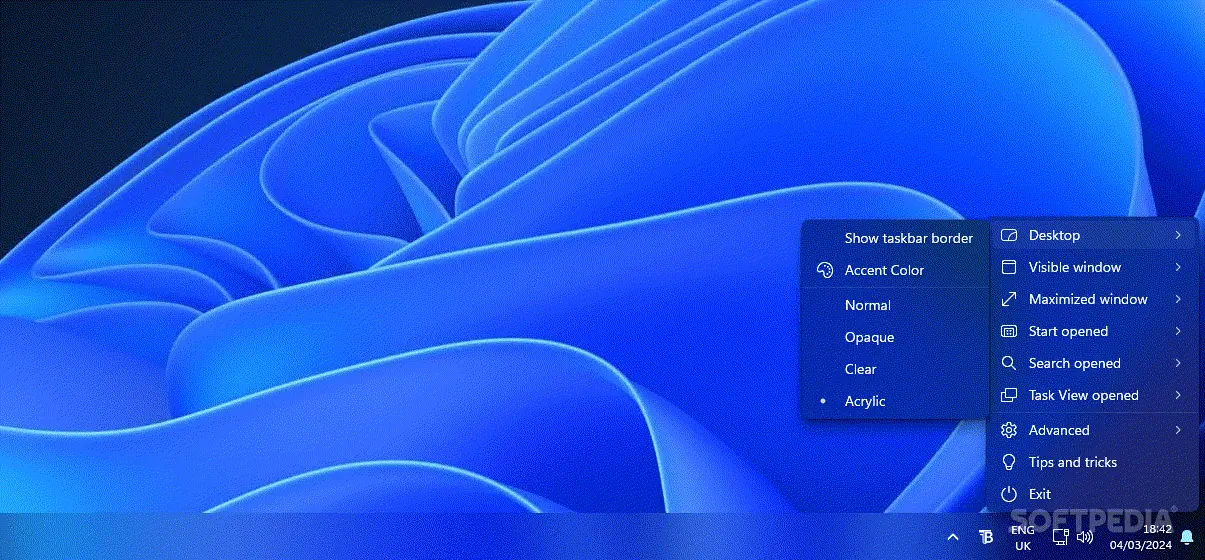
The taskbar line. Windows 11 draws a one-pixel border along the top of the taskbar. Each state in the menu has a Show taskbar border entry. Untick it and the line goes away for that state.
Blur. Microsoft removed the old blur effect in Windows 11 22H2. TranslucentTB brought Blur back for 22H2 and later in version 2024.3, with a radius you can set in the config file. More in the guide to Blur on Windows 11.
Start and Search. The "Start opened" and "Search opened" states are switched off by default on Windows 11. You can turn them on from the menu.
No Aero Peek option. "Show Desktop Peek Button" is a Windows 10 setting and does not apply here.
Windows 11 versions and the TranslucentTB release that added support
| Windows 11 | What happened | TranslucentTB |
|---|---|---|
| 21H2 (build 22000) | First Windows 11 support, new tray menu | 2021.4, 2021.5 |
| 22H2 (build 22621) | New taskbar. Line removal and portable mode added, old blur removed by Microsoft | 2022.1 |
| 22H2 "Moment 2" | Taskbar rebuilt again by Microsoft | 2023.1 |
| Newer builds through 2024 | Start, Search and Task View states repaired, Blur reintroduced | 2024.1, 2024.3 |
| 25H2 and 26H2 with KB5132057 (builds 26200.10075, 26300.10075) | Taskbar moved into a new container. Fix written, release pending | after 2026.2 |
For which builds work today, see the status table for 24H2, 25H2 and 26H2.
Source: release notes on GitHub and issue #1382.
First settings to try on Windows 11
These three give the usual result. The walkthrough for a fully transparent Windows 11 taskbar covers each click.
- Desktop: Clear, with Show taskbar border unticked
- Maximized window: Enabled, Acrylic, so window content does not show through
- Open at boot: ticked
The settings guide explains each entry.
Related pages
- TranslucentTB for Windows 10Requirements, the 64-bit only rule and the Windows 10 extras.
- Windows 7 and 8.1Not supported. Why, and what the older systems do on their own.
- Without the Microsoft StoreApp Installer, the offline msixbundle and PowerShell, for PCs where the Store is blocked.
- Uninstall TranslucentTBEvery install type, plus the restart that finishes the job.
- Transparent taskbar without an appThe built-in switch and the registry tweak, and how far each one goes.
- Blur the taskbar on Windows 11A soft-focus taskbar with a strength you can set.
See everything under Download.