
TranslucentTB startup: run it when Windows starts
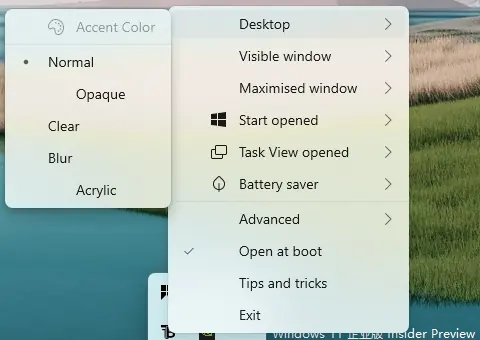
TranslucentTB startup is controlled by one menu entry called Open at boot. Tick it and the app launches each time you sign in to Windows.
Without it, the taskbar returns to the Windows default after every restart.
Checked against TranslucentTB 2026.2. Last updated .
Store and App Installer versions
- Right-click the TranslucentTB tray icon.
- Click Open at boot so it shows a tick.
You can confirm it in Windows: open Settings, Apps, Startup, and TranslucentTB is listed with its switch on. Task Manager's Startup apps tab shows the same entry.
Turning the switch off in Windows Settings also unticks the menu entry. If you disabled it there, Windows may not let the app turn itself back on, and you need to flip the switch in Settings yourself.
Portable version
The portable build has no startup task. Add a shortcut by hand:
- Press Win + R, type
shell:startup, press Enter. - Create a shortcut to
TranslucentTB.exein the folder that opens.
That folder is %AppData%\Microsoft\Windows\Start Menu\Programs\Startup.
Why the taskbar is plain for a few seconds after sign-in
This delay is not a sign of a heavy app (see performance). Windows deliberately delays startup apps so sign-in is not slowed down. For a moment you see the stock taskbar, then TranslucentTB loads and the look changes.
The lead developer has confirmed this is normal Windows behaviour, in issue #696, and points to a separate small tool of theirs, EarlyStart, for people who want startup apps to launch sooner.
Starting before the sign-in screen is not possible. That request was closed as "won't fix" in issue #135.
If sign-in ends in an error dialog instead, the code says which problem it is: 0x80070102, the wait operation timed out or 0x800401E3, Operation unavailable. Both come from the app starting before Explorer is ready.
Open at boot is greyed out
This happens when startup tasks for packaged apps are blocked by policy or by a clean-up script. The README has a registry fix. Follow the greyed-out fix.
Ticked, but it still does not start
- Check Settings, Apps, Startup. The switch there overrides the menu.
- If the app starts and then shows nothing, not even an icon, see TranslucentTB not opening.
- If you see a message saying Windows did not enable the startup task, the registry entries for startup tasks are damaged. The app's own message names debloating and privacy scripts as the usual cause.
Stop it from starting
Untick Open at boot, or switch TranslucentTB off under Settings, Apps, Startup. For the portable build, delete the shortcut from the Startup folder.
Related pages
- How to use TranslucentTBFrom the welcome window to a finished taskbar, in five steps.
- TranslucentTB settings explainedWhat every entry in the tray menu does, including Advanced.
- Tips and tricksTwelve small things that make the result look and work better.
- Uninstall TranslucentTBEvery install type, plus the restart that finishes the job.
- Config file (settings.json)Where settings.json is, how to edit it and every key it accepts.
- Clear vs Acrylic vs BlurThe five looks side by side, with the Windows versions each one needs.
See everything under Guides.