
Acrylic taskbar on Windows 11
Acrylic taskbar Windows 11 styling is the frosted glass effect Microsoft uses on the Start menu and flyouts. TranslucentTB can apply it to the taskbar with any tint colour and opacity you choose.
Checked against TranslucentTB 2026.2. Last updated .
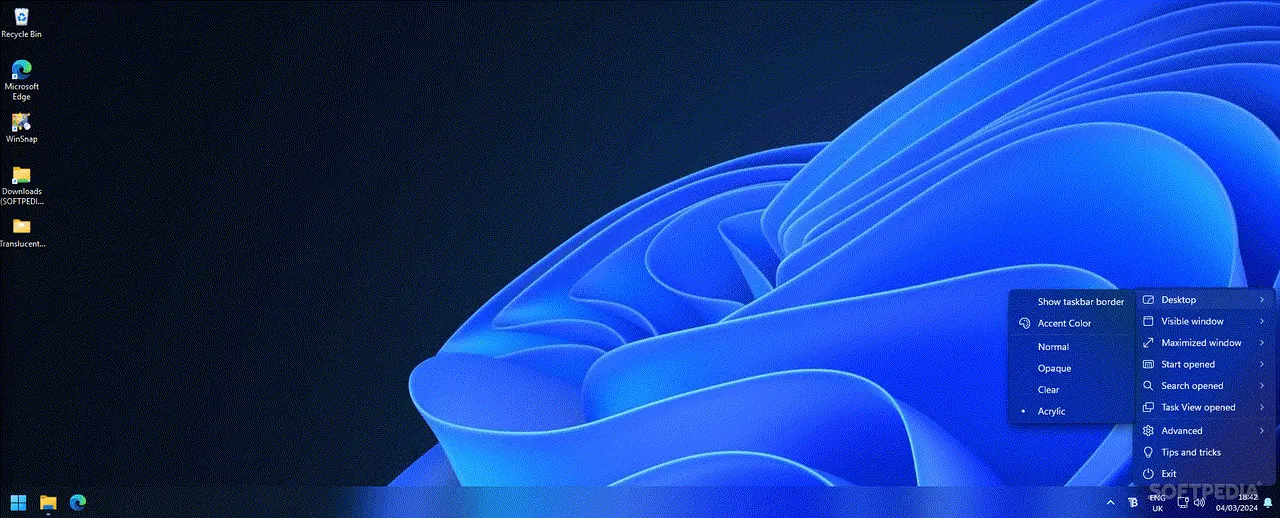
Apply it
- Install TranslucentTB.
- Right-click the tray icon, open Desktop, choose Acrylic.
- Open Accent Color. Pick the tint, then set the alpha to around 40 to 60%.
Lower alpha shows more of the wallpaper. Higher alpha gives a more solid, coloured bar.
Tints that work
- Dark glass:
#10101099, near-black at 60% - Light glass:
#FFFFFF55, white at about 33%, with Windows mode set to Light for dark text - Wallpaper match: sample a colour from your wallpaper in the picker and set 50%
Acrylic only when a window is maximized
The most used setup keeps the desktop Clear and switches to Acrylic behind full-screen windows. Open Maximized window, tick Enabled, choose Acrylic.
If Acrylic shows as black, grey or clear
Acrylic depends on Windows features that can be switched off:
- Turn on Transparency effects in Settings, Personalization, Colors.
- Turn off battery saver or energy saver.
- Reboot if you have just updated the graphics driver.
The fix page for a taskbar that is not clear covers the remaining cases.
Acrylic or Blur?
Acrylic is heavier and adds a tint and fine grain. A blurred taskbar keeps more of the wallpaper's colour. The five looks compared page shows both over the same image.
Related pages
- Transparent taskbar on Windows 11Fully see-through, with the border line removed.
- Remove the taskbar line (Windows 11)Hide the one-pixel border above the Windows 11 taskbar.
- Transparent taskbar without an appThe built-in switch and the registry tweak, and how far each one goes.
- Not working after KB5132057November 2026. The taskbar stays opaque on 25H2 and 26H2 after the preview update. Status and workarounds.
- 25H2, 24H2 and 26H2 statusWhich Windows 11 versions work with 2026.2 today, by build number.
- TranslucentTB for Windows 11Store, App Installer and portable builds, plus what differs on Windows 11.
See everything under Uses.