
How to use TranslucentTB
How to use TranslucentTB comes down to one thing: everything is in the right-click menu of its tray icon. There is no settings window to look for.
These five steps take a new install to a finished taskbar.
Checked against TranslucentTB 2026.2. Last updated .
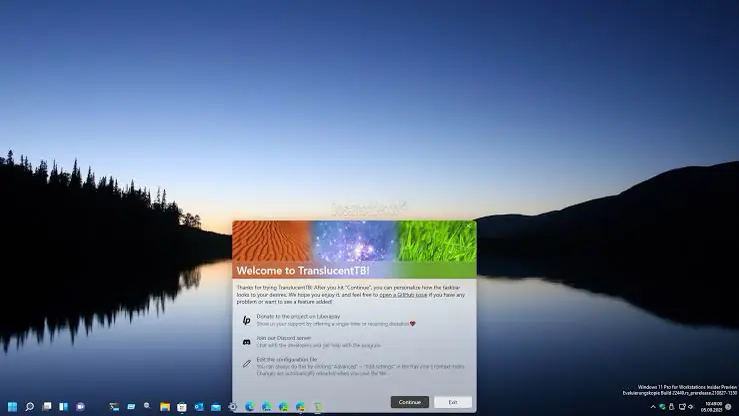
1. Start it and accept the welcome window
If it is not installed yet, start with the download page for Windows 11 or Windows 10.
Open TranslucentTB from the Start menu. The first run shows a welcome window with links to the project's Discord and donation page. Click Continue.
The taskbar turns clear, because the default look for the desktop is Clear.
2. Find the tray icon
Look at the right end of the taskbar, near the clock, for a small "TB" icon. On Windows 11 it usually sits behind the ^ arrow. Drag it out onto the taskbar if you want it always visible.
Right-click the icon. This menu is the whole interface.
No icon anywhere? See why TranslucentTB does not open.
3. Choose a look for the desktop
Open Desktop and click one of the five looks:
- Normal: Windows default, as if the app were off
- Opaque: a solid colour
- Clear: see-through
- Blur: lightly blurred
- Acrylic: frosted
The change applies the moment you click. Nothing needs saving.
If nothing changes at all, go to the not-working checklist before trying anything else.
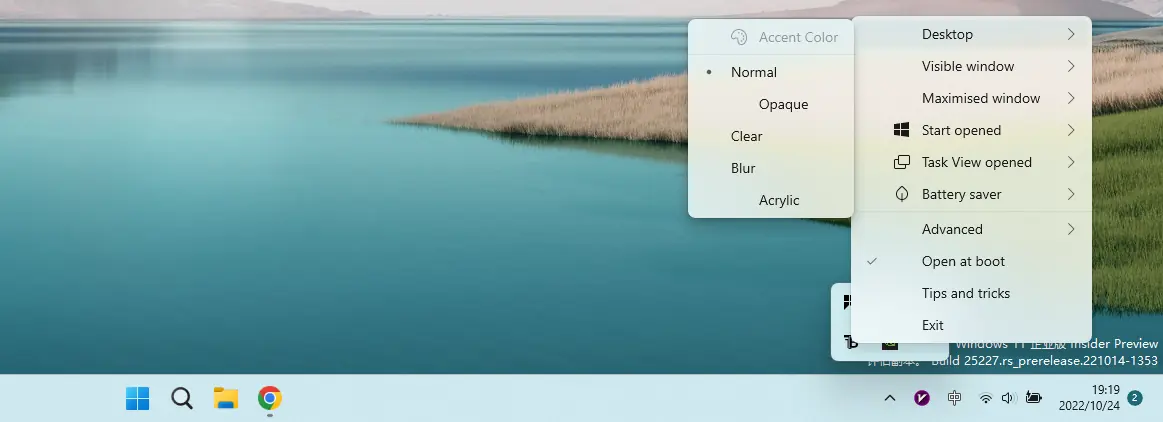
4. Set the colour and opacity
In the same submenu, click Accent Color. The colour picker has a hue square, a brightness slider and an alpha slider. Alpha is the opacity: all the way down is fully transparent, all the way up is solid.
The taskbar previews the colour while you drag. Confirm with the tick.
If the clock is hard to read on your wallpaper afterwards, change the taskbar text colour with a Windows setting.
Accent Color is greyed out while the look is Normal, since Normal means "leave it to Windows".
5. Decide what happens when a window is open
A fully clear taskbar looks good on the desktop and can be hard to read over a white document. That is what the other menu entries are for.
- Open Maximized window and tick Enabled.
- Pick Acrylic or Opaque for it.
Now the taskbar is clear on the desktop and solid when a window fills the screen. The same Enabled switch exists for Visible window, Start opened, Search opened, Task View opened and Battery saver.
Last: start it with Windows
Tick Open at boot in the main menu. Without it the taskbar goes back to normal after every restart.
If the entry is greyed out, see the fix for a greyed-out Open at boot.
How to turn it off or close it
Right-click the tray icon and choose Exit. The taskbar returns to the Windows default straight away. To remove the app completely, use Windows' own uninstall. To pause the effect without closing the app, set Desktop to Normal.
Where to go next
Sources: the project README and the app's own menu and welcome text in its English string resources.
Related pages
- Blur and blur radiusWhich Windows builds have Blur, and how to change its strength.
- Performance, RAM and lagWhat the app does while idle, how to measure it, and the known lag causes.
- TranslucentTB portableThe no-install zip for Windows 11, with startup and settings notes.
- Error 0x800401E3The sign-in error with a fix merged for the next release.
- White line or white barThe thin border line, and the separate white-block bug.
- Config file (settings.json)Where settings.json is, how to edit it and every key it accepts.
See everything under Guides.