
A clear taskbar app for Windows
Clear taskbar app is the plain description of what TranslucentTB does. Its Clear look draws only the colour you choose, at the opacity you choose. Set that opacity to zero and the taskbar's background is gone.
Checked against TranslucentTB 2026.2. Last updated .
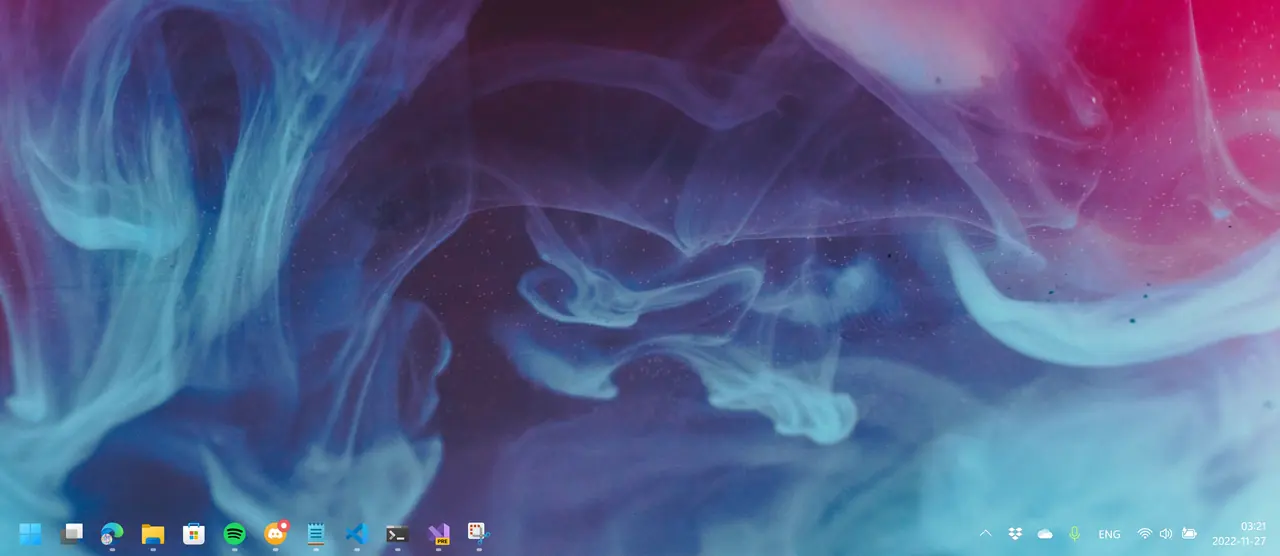
From invisible to tinted
Clear is controlled by one slider, the alpha in the colour picker.
| Alpha | Config value (black) | Result |
|---|---|---|
| 0% | #00000000 | No background at all |
| 25% | #00000040 | A faint shade. White icons stand out slightly. |
| 50% | #00000080 | Smoked glass |
| 100% | #000000FF | Solid, the same as Opaque |
Turn it on
- Install TranslucentTB and right-click its tray icon.
- Open Desktop and choose Clear.
- Open Accent Color and set the alpha.
Clear is the default for the Desktop state, so a fresh install is already clear.
Clear on Windows 11 and Windows 10
Clear works on both. On Windows 11, also untick Show taskbar border, or a thin line remains where the taskbar begins. For a transparent taskbar on Windows 10, untick Show Desktop Peek Button for the same reason.
When clear is the wrong choice
Over a white document or web page, a clear taskbar puts light icons on a light background. Give windows their own look: enable Visible window or Maximized window and pick Acrylic or Opaque for it.
An invisible taskbar: Clear plus auto-hide
"Invisible taskbar" can mean two things. With Clear at zero opacity the bar's background is invisible and the icons stay. Windows' auto-hide does the other half: the whole taskbar stays out of sight until the pointer reaches the bottom edge.
- Windows 11: Settings, Personalization, Taskbar, Taskbar behaviors, "Automatically hide the taskbar".
- Windows 10: Settings, Personalization, Taskbar, "Automatically hide the taskbar in desktop mode".
Microsoft describes the setting in Customize the Taskbar in Windows. TranslucentTB styles auto-hide taskbars too, since a fix in version 2024.1. With both on, the taskbar is hidden most of the time and appears as floating icons with no bar behind them.
The app has no hotkey to hide or show the taskbar. That request was declined (#188). It also does not hide icons. Unpin apps you do not use, and switch off Search, Task view and Widgets in Taskbar settings.
"Clear taskbar" in the other sense
If you meant emptying the taskbar of pinned apps, search history or the jump list cache, that is a Windows setting and not what this app does. Right-click a pinned icon and choose Unpin from taskbar.
If Clear is selected and the taskbar is not clear, see why the taskbar is still tinted.
Sources: the project README, the configuration documentation for the colour format, and issues #449 and #233, and the 2024.1 release notes.
Related pages
- Transparent taskbar on Windows 11Fully see-through, with the border line removed.
- Transparent taskbar without an appThe built-in switch and the registry tweak, and how far each one goes.
- Taskbar text colourWhite clock and icons on a clear taskbar, using a Windows setting.
- How to use TranslucentTBFrom the welcome window to a finished taskbar, in five steps.
- TranslucentTB settings explainedWhat every entry in the tray menu does, including Advanced.
- Tips and tricksTwelve small things that make the result look and work better.
See everything under Uses.