
TranslucentTB hide tray icon option, and how to get the icon back
TranslucentTB hide tray icon is an option in the config file named hide_tray. Older versions had it in the Advanced menu. Version 2024.3 took it out of the menu because people hid the icon by accident and then could not reach the settings.
Checked against TranslucentTB 2026.2. Last updated .
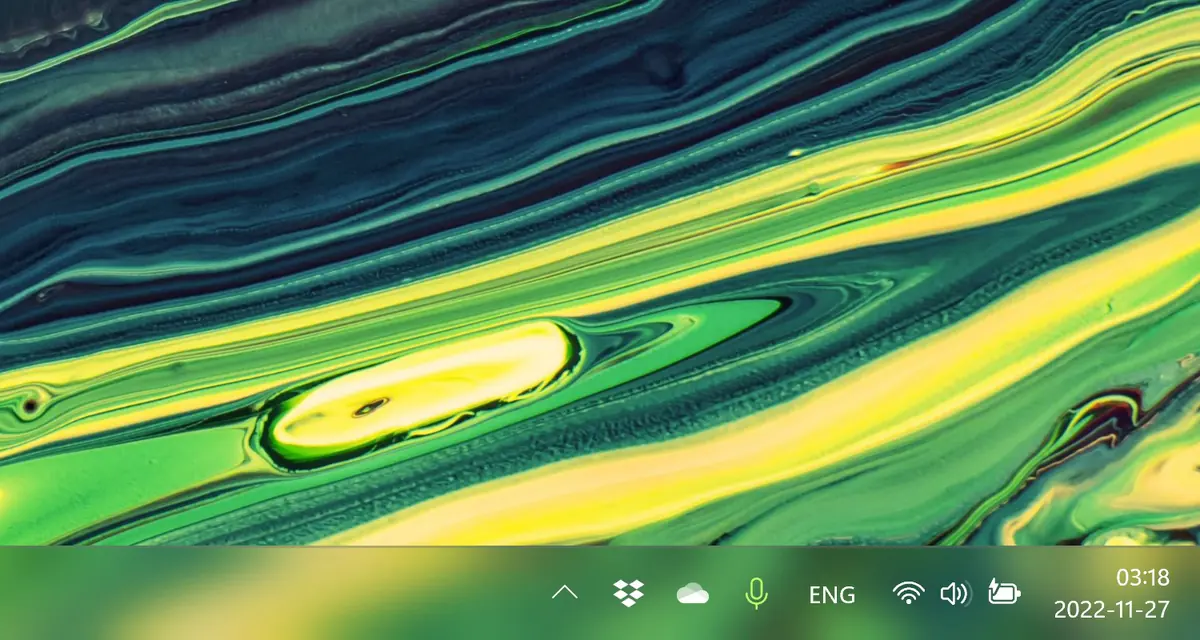
The simple way: let Windows tuck it away
If the icon only bothers you on the taskbar, you do not need the option at all.
- Windows 11: drag the icon onto the
^arrow, or go to Settings, Personalization, Taskbar, Other system tray icons and switch TranslucentTB off. - Windows 10: Settings, Personalization, Taskbar, "Select which icons appear on the taskbar".
The icon stays one click away in the overflow panel, and the menu still works.
Hide it completely with hide_tray
- Right-click the tray icon, open Advanced, click Edit settings.
- Add this line inside the outer braces. Mind the comma between entries:
"hide_tray": true- Save the file. The icon disappears straight away.
The app keeps running and keeps styling the taskbar. You just have no menu.
Change settings while the icon is hidden
Edit settings.json directly. Every menu option has a key in the file, and the app reloads the file when you save it. The config file guide lists every key.
Starting TranslucentTB a second time does not bring the icon back.
Close the app while the icon is hidden
Open Task Manager with Ctrl + Shift + Esc, find TranslucentTB under Processes, and choose End task. The taskbar returns to the Windows default.
Portable version
The same key works. The file is settings.json beside TranslucentTB.exe.
Sources: 2024.3 release notes, the project's configuration documentation, and issues #467 and #747.
Related pages
- Per-app rulesGive one program its own taskbar look, or tell the app to ignore a window.
- TranslucentTB not openingAlready running, the restart-Windows loop, portable errors and the offline first launch.
- Settings not saving or resettingChanges lost after a restart, or "failed to save configuration".
- How to use TranslucentTBFrom the welcome window to a finished taskbar, in five steps.
- Tips and tricksTwelve small things that make the result look and work better.
- Run at startupOpen at boot, the portable method and the start-up delay.
See everything under Guides.